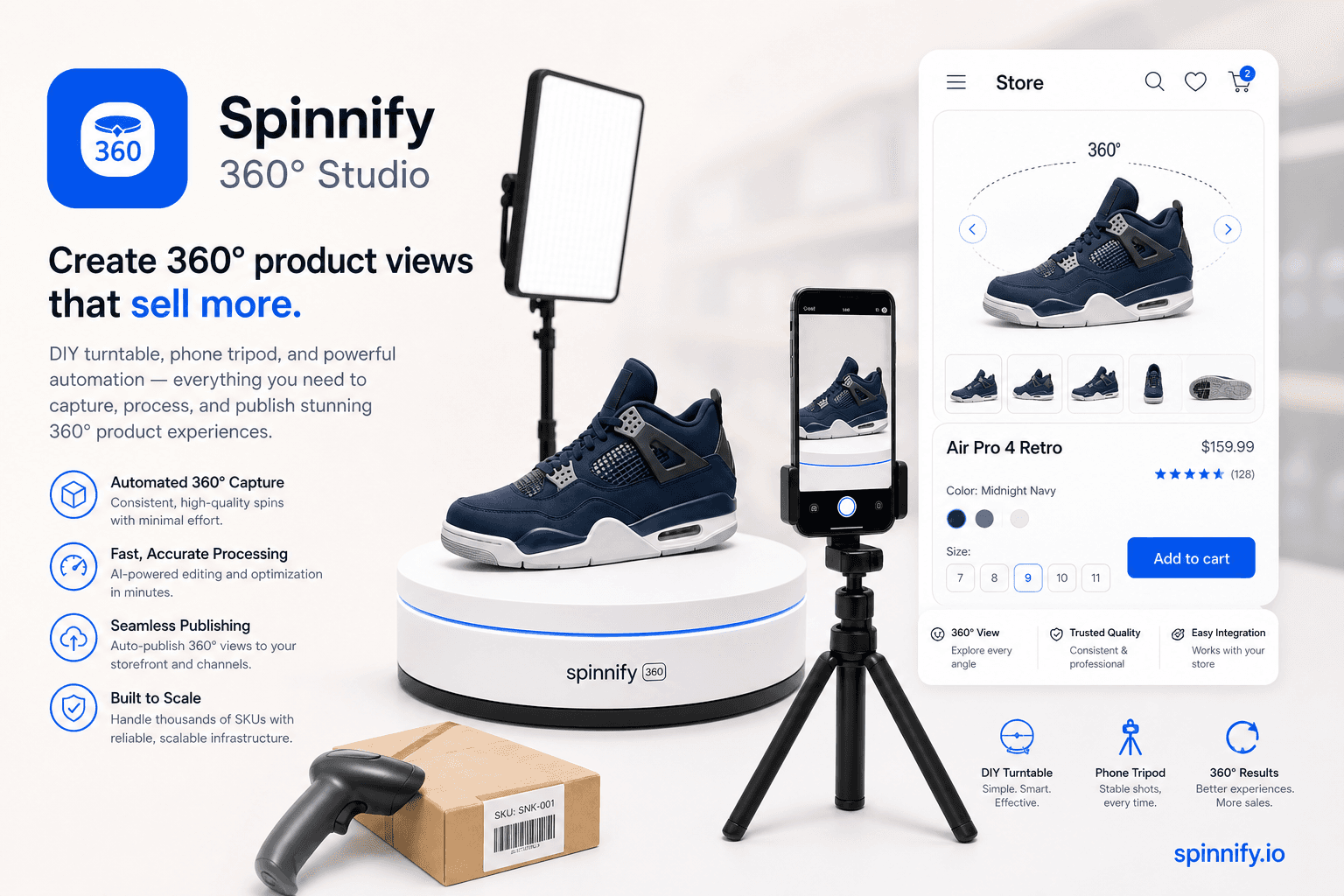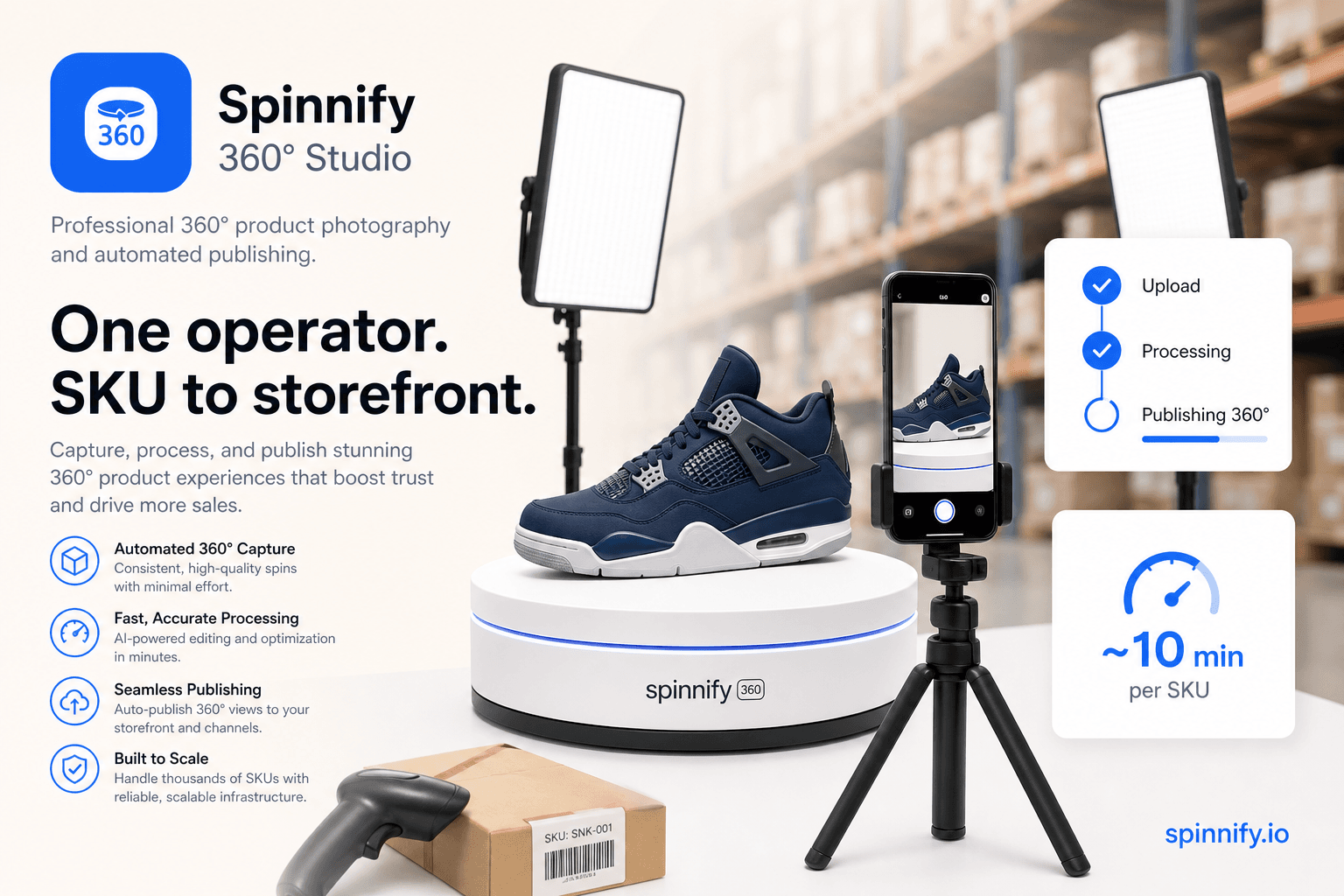
Quick answer
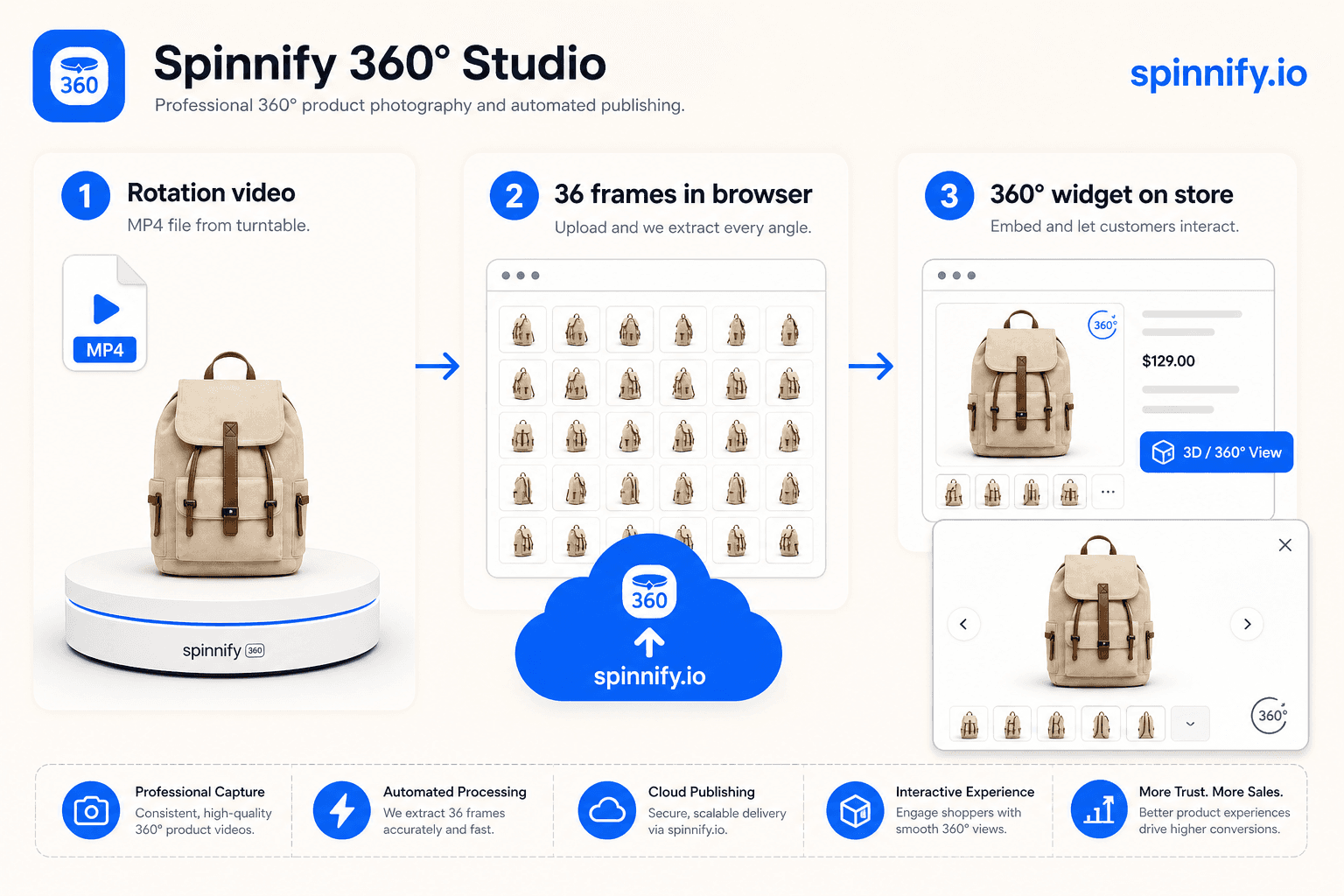
If you already filmed a full turn on a turntable, you do not need to export thirty-six separate photos. In the Spinnify Studio web dashboard, drop one short rotation video into the same upload zone as spin frames. The browser checks the file, extracts 36 evenly spaced frames, uploads them to the cloud, and the interactive 360° viewer on your store works like a normal photo series.
Catalog teams often end up with a clean phone clip or a warehouse reel long before anyone has time to batch-rename JPEGs. The old habit is to treat that file as “B-roll” and start over with a frame export. Spinnify added a faster path: one video in, one publishable spin out, with the same widget and CDN delivery you already use for photo uploads.
This guide covers only that upload workflow. Widget embed modes, Shopify blocks, and hotspots are on the Spinnify homepage and in our longer 360° product view guide. By the end you should have an active product in Studio and a spin ready to preview in about two minutes of desk time.
Why a rotation video is often enough
A good turntable pass already contains every angle you need. Product centred, light steady, full 360° on a lazy Susan or motorized table. The friction is not the shoot. It is exporting stills, keeping filenames in order, and uploading dozens of files without swapping frame 14 and frame 41.
One video file keeps the motion you captured. Spinnify samples the timeline into the frame set the storefront widget expects. Shoppers still drag to rotate in the modal viewer. You skip the rename step, not the quality bar.
What Spinnify does with your file
Upload happens in the browser on the product card. Spinnify validates format and length, then extracts 36 frames at even intervals across the clip. JPEG originals land in your cloud project; the CDN serves resized WebP and AVIF to buyers. The 3D control still loads on tap, so the product page stays light.
The main desktop block expects landscape 4:3 frames. The optional mobile block uses portrait 3:4 when you want a phone-tuned pass. If you upload only one series, the widget shows it on every device.
Upload a spin in Studio (about two minutes)
These steps assume you already have a Spinnify account. The upload itself is quick when the video meets the limits in the checklist below.
Create the product card first
In Spinnify Studio, add a product whose name matches your catalog article code. Spelling matters; letter case does not. Open that card before you drop the video so frames attach to the right cloud folder and the widget can match the SKU later.
Drop the rotation video
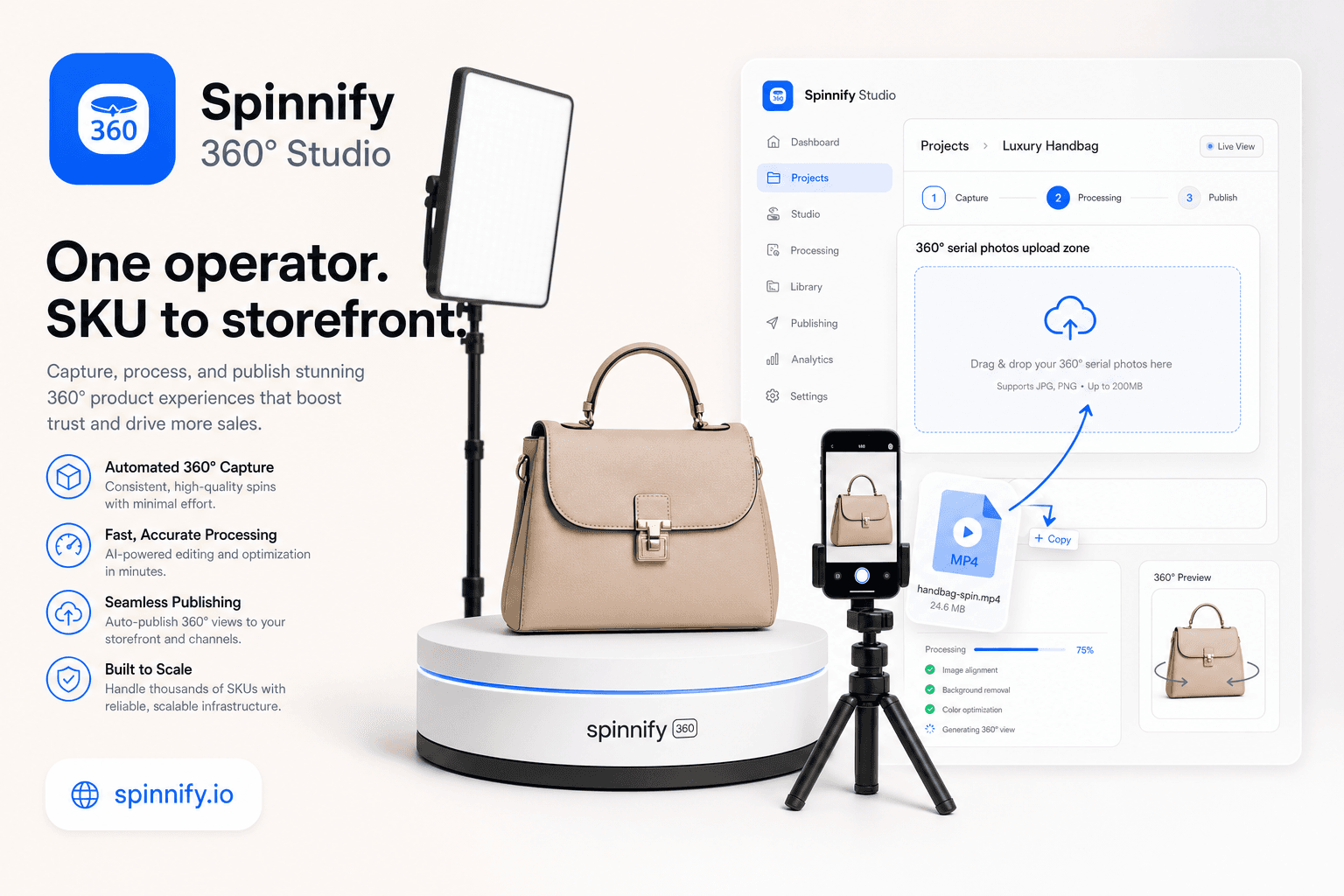
On the product card, use the main «360° serial photos» drop zone (the same area as photo uploads). Drag an MP4, WebM, or MOV file, or choose it from disk. One video per batch. Do not mix video and photos in the same drop.
Wait, then publish
The dashboard walks through validate, extract frames, and upload. When the progress bar finishes, scrub the preview on the card. Toggle Active when the loop looks right, then paste your widget snippet on the product page if you have not already.
File checklist before you upload
Keep this list open while you export from your phone or editing tool. Out-of-range files fail early with a clear error.
- 1. Format: MP4, WebM, or MOV.
- 2. Length: up to 35 seconds.
- 3. Size: up to 50 MB.
- 4. One video per upload batch (no mixed photo + video drops).
- 5. Landscape for the main 4:3 series; portrait for the optional 3:4 mobile series.
Mistakes that slow teams down
Mixing one video and a handful of photos in the same drop confuses the uploader. Pick a single path per batch: up to 36 photos or one video file.
Auto-exposure video flickers when the product turns. The extracted frames pulse on the product page. Lock exposure and white balance on the camera before you film, the same discipline you would use for a photo series.
A product name that does not match the storefront article code is the other common blocker. The spin uploads fine, but the 3D button never appears. Create the Studio card with the same identifier your widget will match.
Ready to try it? Open spinnify.io, create a product, and drop your clip. Most teams finish the upload in about two minutes. Embed time depends on your storefront template.