Quick answer
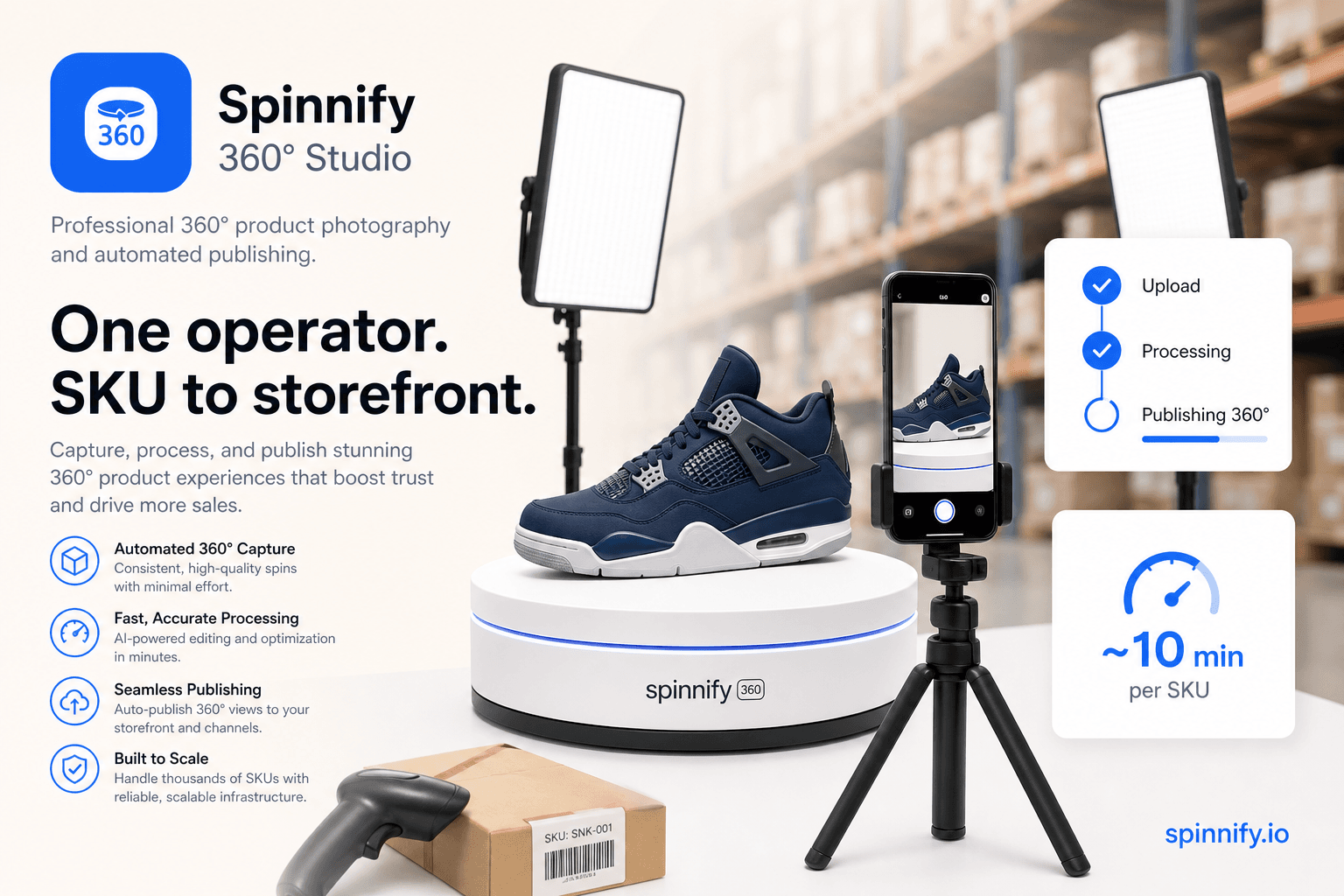
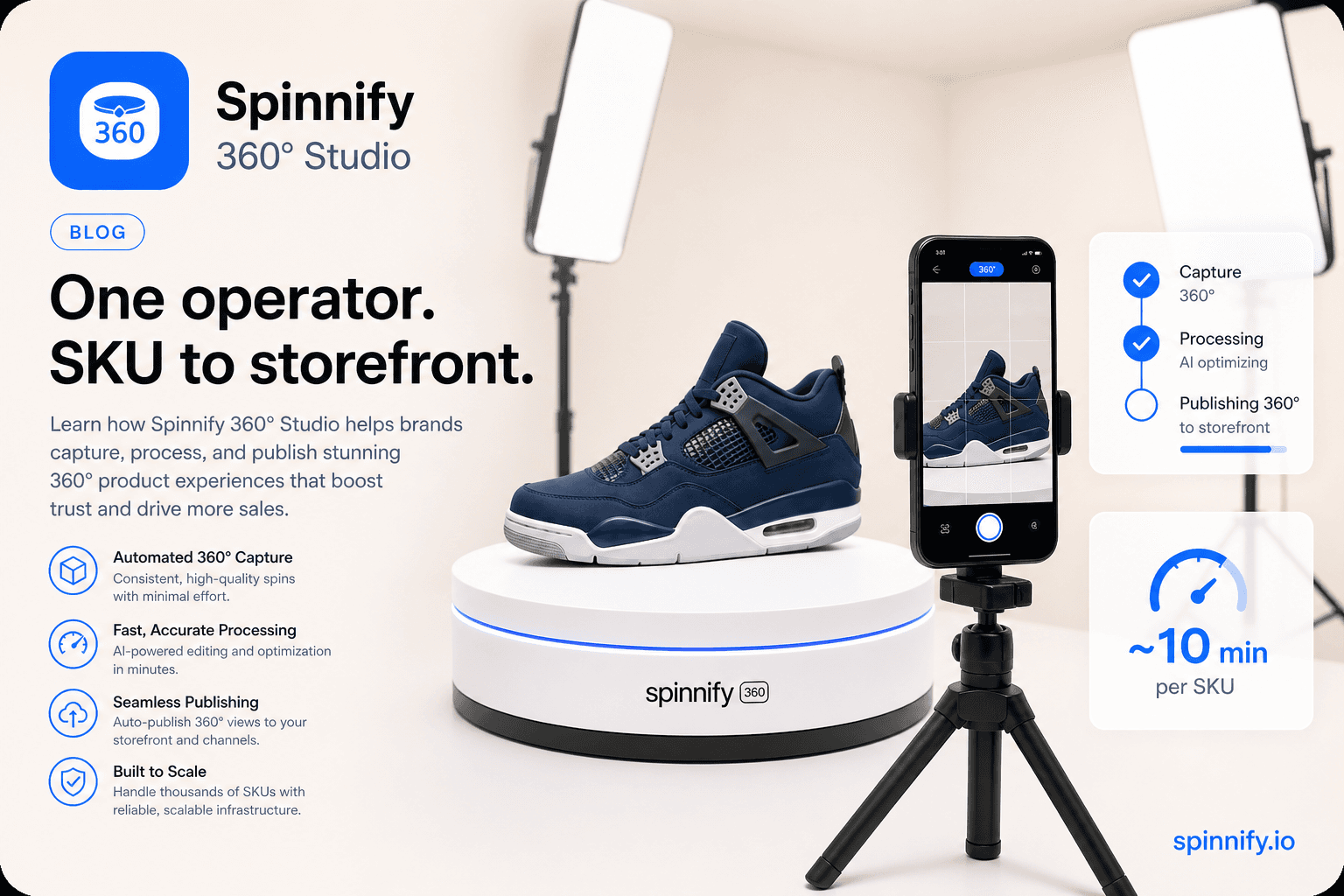
In ecommerce, a 360 spin camera is usually a phone or still camera locked on a tripod, aimed at a product on a turntable. It is not a spherical action camera that stitches a room panorama. You keep the lens fixed, turn the product in even steps, and collect still frames. Spinnify 360° Studio publishes those frames as an interactive spin: shoot in the mobile app (PC photos 4:3, optional Mobile photos 3:4, burst interval 0.5–2 s) or load a series in the web dashboard.
Search results for “360 spin camera” and “spinning 360 camera” mix two jobs. One is adventure and real-estate capture with a ball-shaped lens. The other is catalog work: photograph one SKU from every side so a shopper can drag the product on the page. This article teaches the second job. You will set up a product turntable camera corner, learn how to shoot 360 photos with a rotating tripod (or a fixed tripod and a rotating table), and map the frames into Spinnify 360° Studio without inventing gear that the product does not support.
If you need a full DIY lighting walkthrough, use the companion DIY smartphone 360 product photography guide. If you need batch timing for receiving, use the ecommerce 360 warehouse workflow. The pillar overview of the format lives in 360 product photography.
What “360 spin camera” means on a product page
On a product page, 360 camera photography means a sequence of stills around one item. Typical catalogs use 24 to 36 frames. The shopper opens a control, then drags left or right. That interaction is inspection, not a forced video loop.
A spherical action cam (Insta360-style hardware, GoPro Max, and similar) maps a room or a ride. Those files are panoramas or dual-fisheye video. They do not match the Spinnify storefront widget, which expects ordered product frames (or a short turntable clip processed in the web dashboard). Buying the wrong camera type is the most common setup mistake in this keyword cluster.
Gear stack: tripod, turntable, lights
You need three physical pieces and one software path. The physical pieces are a sturdy table, a manual or motorized product turntable, and a tripod that holds a phone or camera at the product’s midline. Two inexpensive LED panels at roughly 45° keep the light even. A white or gray backdrop is enough. Constant light beats flash because every frame must match brightness.
- Tripod: lock height and distance once; do not hand-hold the spin.
- Turntable: mark degree steps so every operator turns the same amount.
- Camera: phone or still camera; lock exposure, white balance, and ISO before the first frame.
- Backdrop: neutral, matte, free of busy patterns that jump between frames.
A motorized table helps warehouse speed. A marked lazy Susan works for small catalogs. Spinnify 360° Studio does not sell hardware and does not require a branded rig. The product cares about even frames and a matching catalog name, not the turntable brand.
How to shoot 360 photos with a rotating tripod setup
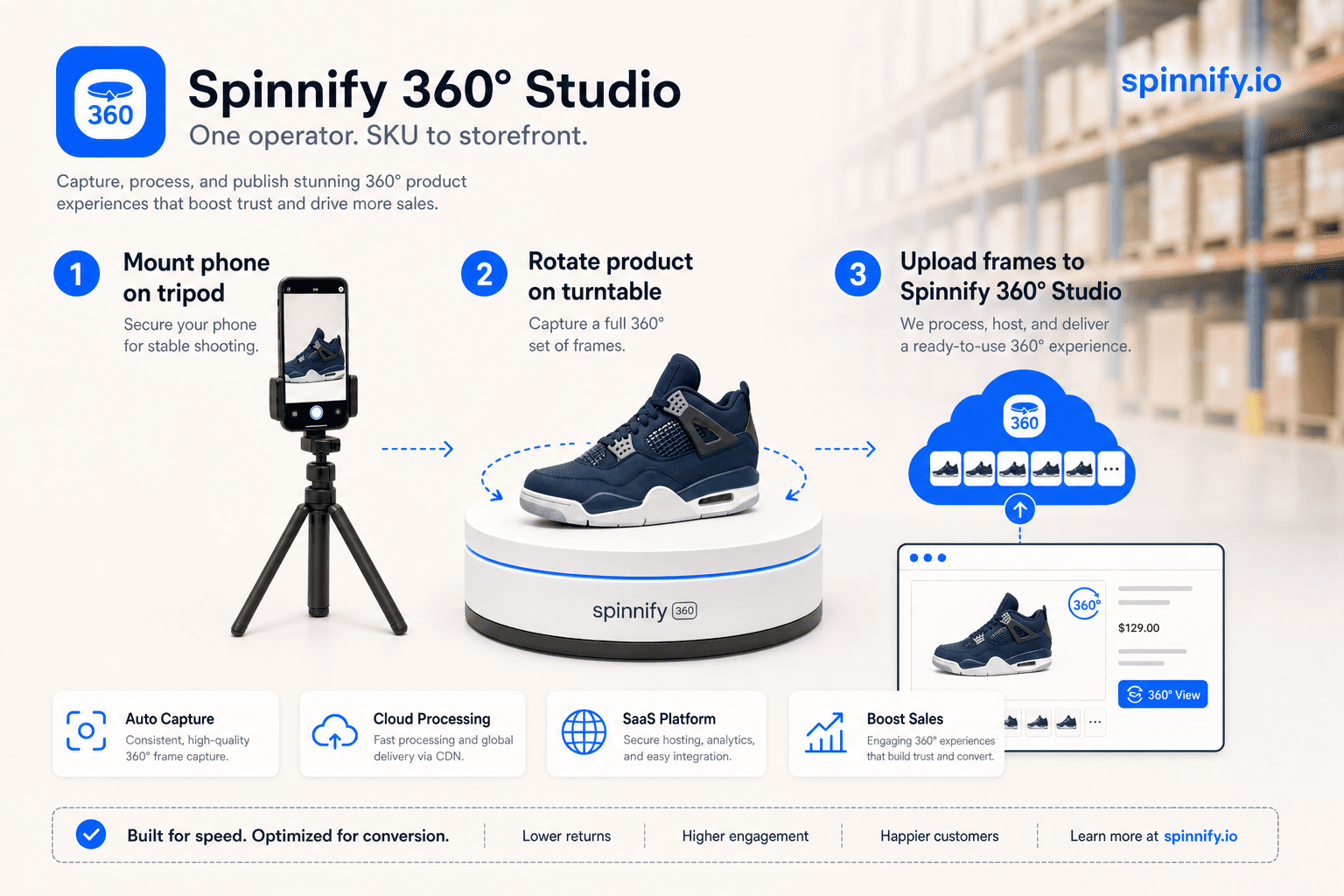
People say “rotating tripod” when they mean either a phone mount that orbits the product or, more often in ecommerce, a fixed tripod while the product rotates. Both work if the relative motion is a clean circle. Spinnify’s capture path assumes the second pattern most of the time: lens fixed, product turns.
1. Mount and level the camera
Place the tripod so the lens sits at the vertical centre of the product. Level the base. Fill the frame without cropping handles or soles you want shoppers to see. Leave a little margin so tracking hotspots later still have room.
2. Centre the product and lock camera settings
Set the item on the turntable axis. Mark your step size (for example every 10° for 36 frames, or every 15° for 24). Lock exposure, white balance, and ISO. Auto-exposure between frames creates a brightness pulse in the published spin.
3. Create the product in Spinnify 360° Studio first
Before the first shutter click, log in to Spinnify 360° Studio and create a product whose name matches your catalog SKU (case does not matter). The mobile app and the storefront widget both key off that name. Skipping this step is the usual reason a perfect shoot never appears on the product page.
4. Capture with the Spinnify mobile app
Install the Spinnify iOS or Android app, sign in with the same email and password as the website, and allow camera access. On the home screen, type the product name (SKU) and open the card. There is no barcode scanner in the app: you enter the identifier manually. Choose PC photos for the main landscape series (4:3) or Mobile photos for the optional portrait series (3:4). Shoot step by step, or use burst with an interval between 0.5 and 2 seconds while you turn the table. The app does not record or upload video files; video-to-frames exists only in the web dashboard.
5. Review, upload, confirm on the storefront
Scrub the loop in the app before you tear down lights. Upload when the motion looks even. Frames go to the same cloud product as the web dashboard (WebP on device for the app path). With the widget embedded once on your theme, an Active product that matches the catalog identifier shows the 3D control after a shopper tap. Hotspots, widget code, and billing stay in the web dashboard.
Phone versus dedicated still camera
A recent phone is enough for most apparel accessories, bottles, and small electronics. Use a dedicated still camera when you need shallower depth of field, tethered review, or a sensor that holds detail on jewelry metal. Spinnify 360° Studio accepts the resulting frame series either way. The widget does not know which body you used.
If you already filmed a full turn as a clip on a larger camera, skip the app burst path and use the web dashboard video drop zone instead. That path extracts 36 frames in the browser. Keep that workflow for desk time; keep the app for floor capture.
Where this setup fits next
Once the corner is laminated on a card (heights, light angles, step marks), hand the checklist to receiving. Depth on smartphone lighting and frame pacing lives in the DIY smartphone guide. Batch SKU timing and shift habits live in the warehouse 360 workflow.
Ready to lock your own corner? Open Spinnify 360° Studio, create the product name that matches your catalog, then shoot the first test SKU with the mobile app or a still series on the web dashboard.