Quick answer
360° on 1C-Bitrix catalog (not Bitrix24): publish in Studio (name = article, Active) → paste widget.js in an include area (bitrix:main.include) or catalog.element → data-key + data-sku (AUTO if JSON-LD sku exists). Lazy load and modal. Test a live product URL. If composite is on, test with it on; do not disable composite as the default fix.
Bitrix galleries flip still photos. Shoppers still cannot turn the item. You can add a photographed 360° spin without a Bitrix Marketplace module: host frames in Spinnify and paste one script.
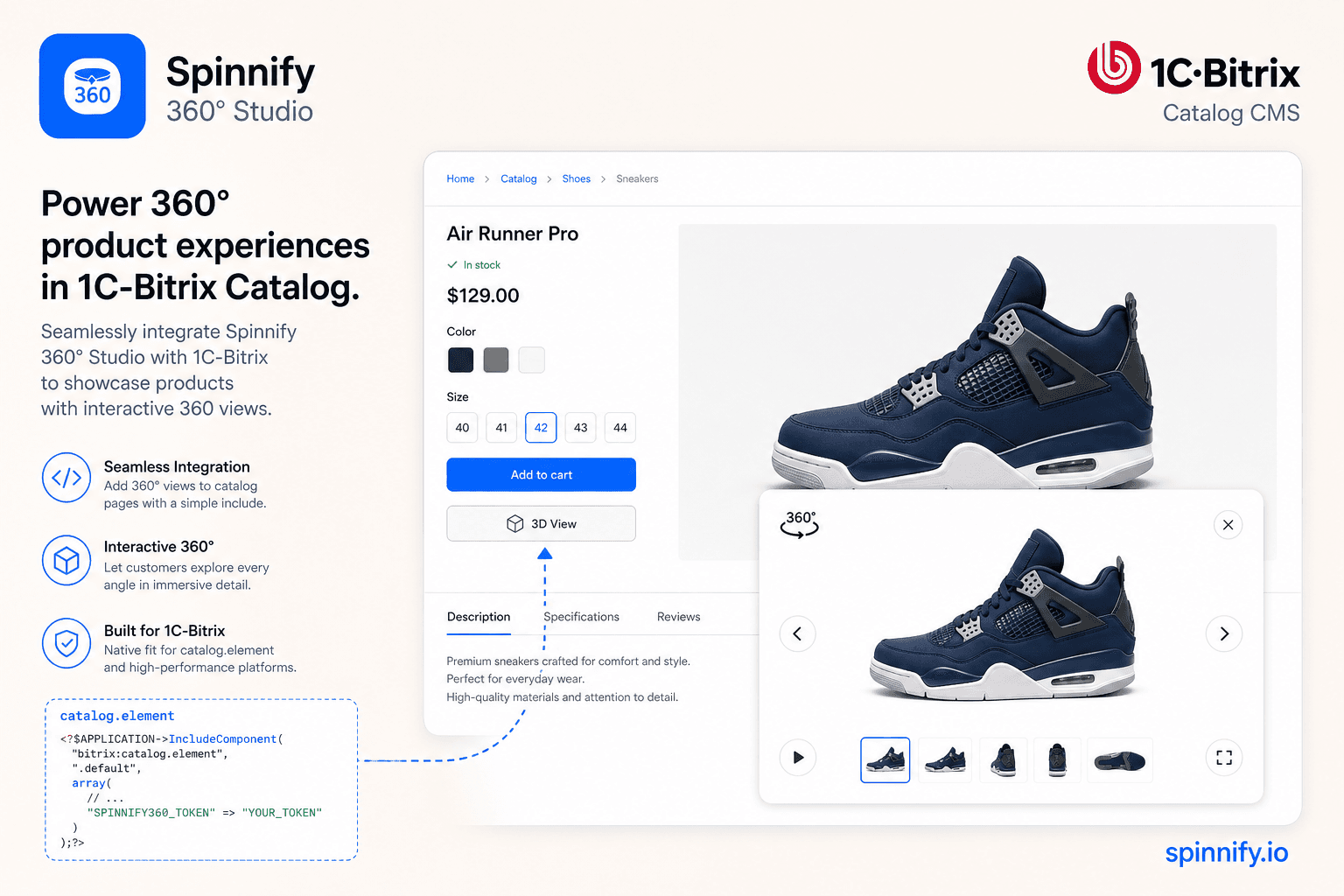
This guide is for 1C-Bitrix CMS catalog pages (catalog.element). Bitrix24 is a different product (CRM) and is not this stack. The same widget.js snippet works on a product detail page. You do not install an extra Bitrix marketplace module from Spinnify.
3 steps from photos to a live Bitrix page
The work is the embed: one script on the product detail page, then a match to the catalog article.
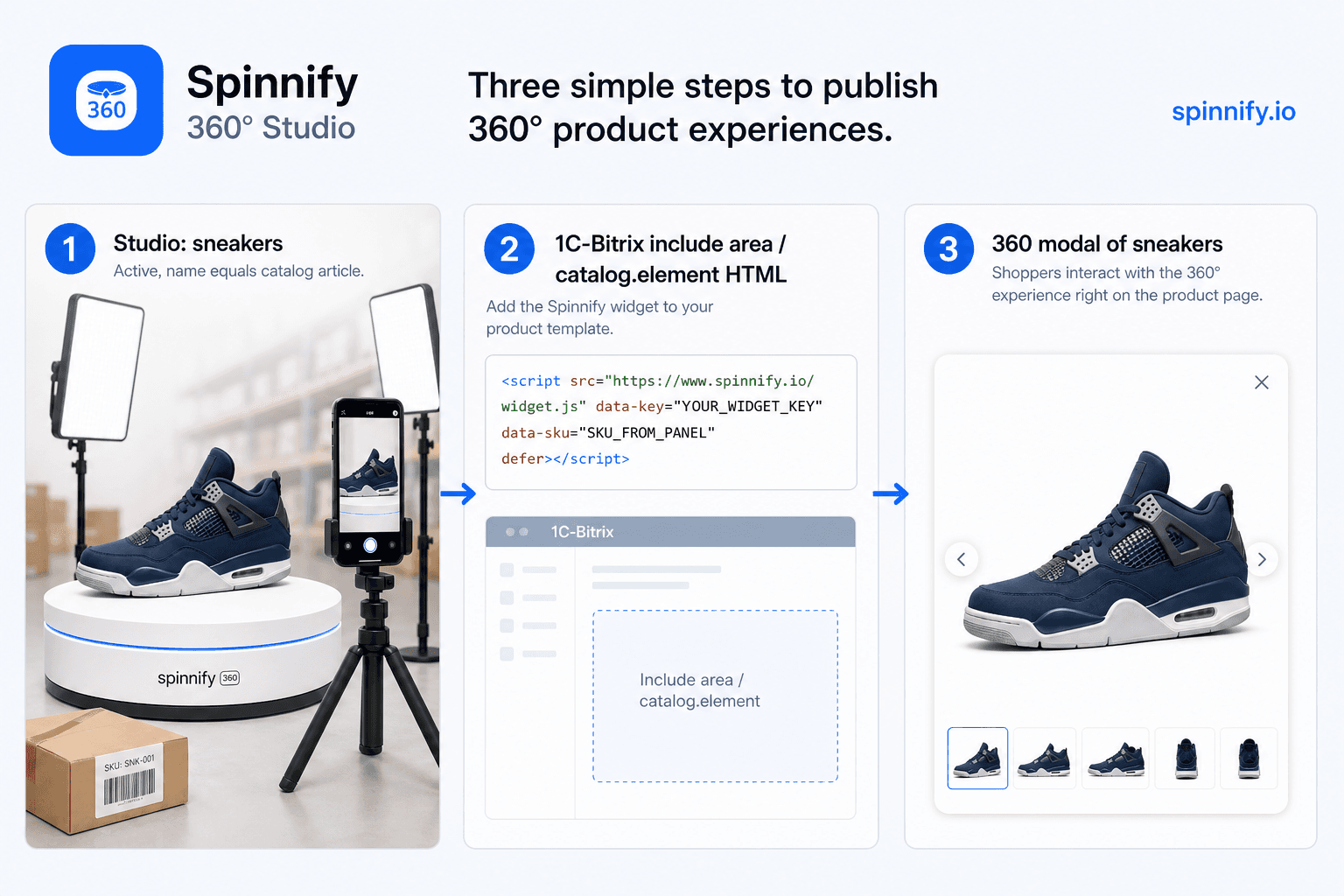
1. Prepare in Spinnify Studio
Before you open the Bitrix admin:
- Sign up for Spinnify Studio.
- Create a product and upload a photo series (24–36 frames, 4:3 for PC photos).
- Important: the Studio product name must equal the catalog article (spaces and hyphens matter; case does not).
- Keep the product Active. A hidden product will not show the button.
2. Add code on Bitrix
Two ways to paste the same Studio snippet. Copy it from Widget installation → Show code.
Method A: include area (fastest for the whole catalog). On the product detail template (catalog.element), add a bitrix:main.include component. Point it at an include file (for example in /include/) that holds the script, save. Use data-sku="AUTO" when the product page already prints Schema.org Product JSON-LD with a sku.
Method B: catalog.element template.php (one paste in the detail template). Open the product detail template, paste the same snippet, save. Use Manual data-sku set to that product’s catalog article if AUTO is not available. Do not paste it in catalog.section: that would load the script on listing grids.
3. Configure the binding
The code looks like: <script src="https://www.spinnify.io/widget.js" data-key="YOUR_WIDGET_KEY" data-sku="SKU_FROM_PANEL" defer></script>
- data-key: your Studio widget key. Do not change it.
- data-sku: the catalog article, or AUTO to read sku from JSON-LD, or URL if you saved the page path in Studio. For SKU offers, bind to the offer article the shopper sees.
Why it stays fast
A third-party script on 1C-Bitrix raises PageSpeed questions because composite cache and catalog.element already own first paint. Spinnify keeps the extra work off that paint: frames stay on the CDN until someone asks to spin. The Bitrix gallery still renders first; the 360 layer opens in a modal after the click.
- Lazy loading: the browser does not fetch the frame set until the shopper clicks.
- Isolation: the viewer opens in a modal and does not replace the Bitrix gallery on first paint.
- CDN: frames are resized WebP/AVIF, not extra files in Bitrix upload storage.
Checklist: button not showing?
If the 3D View button is missing, walk this list on a live product URL, not in admin preview.
- Are you on a live product URL? Visual editor preview is a poor test for storefront scripts.
- Composite site: test the published page with composite on. If the button is missing, put the script outside a dynamic frame or re-test with ?ncc=1, then fix placement. Do not disable composite site-wide as the default fix.
- Do names match? Studio product name and catalog article must match (spaces and hyphens included).
- Is the Studio product Active?
- Is data-key copied from your account?
- One script per page: do not paste the snippet twice. Keep it off catalog.section listings.
- SKU offers: bind to the offer article the shopper sees, or use URL mode if each offer has its own path.
Can I customize the button look?
Yes. Style the launcher in Studio, not in theme CSS. You can match the storefront without editing the product template:
- Position: right, left, or center.
- Colors and label to match the Bitrix theme.
- Format: round floating icon or slim tab.
After that, Bitrix still serves the gallery. The 360° layer opens when someone asks for it.
Shoot spins: how to create a 360 view. Other HTML stores: Tilda Zero Block. WooCommerce 360 spins.