Back to blog
Integration10 min1,543 reads

How to Add a 360° Product View on Tilda: A Guide for Store Owners

3 no-code steps: publish in Spinnify Studio, embed via T123 or Zero Block, bind by SKU. Lazy load, modal, WebP/CDN. Checklist if the button stays hidden.

TildaIntegration
Tilda Zero Block page opening Spinnify 360° viewer in a modal overlay

Quick answer

360° on Tilda: publish in Studio (name = SKU, Active) → embed widget.js in T123 or Zero Block → data-key + data-sku. Lazy load and modal. Test on published page, not preview.

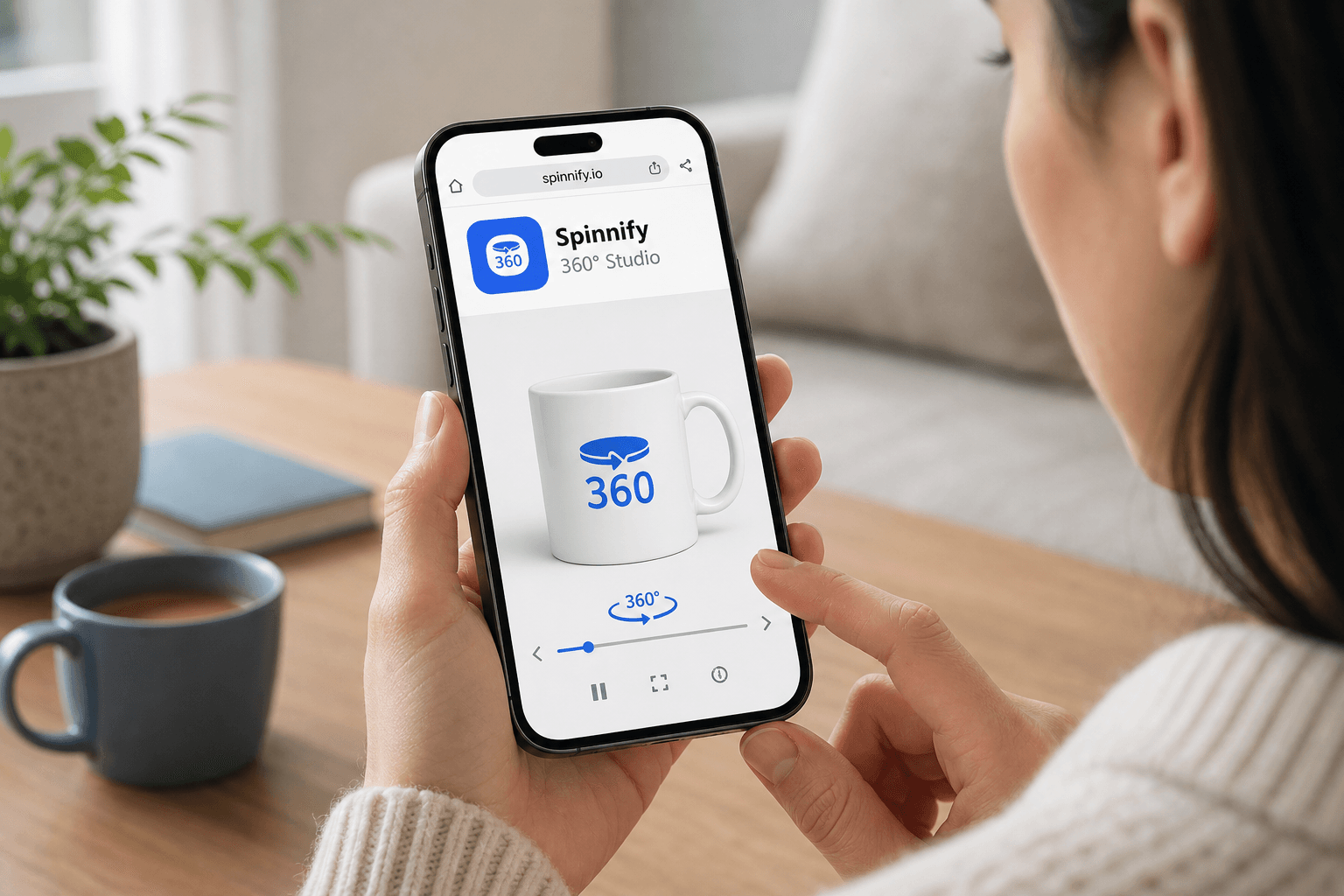
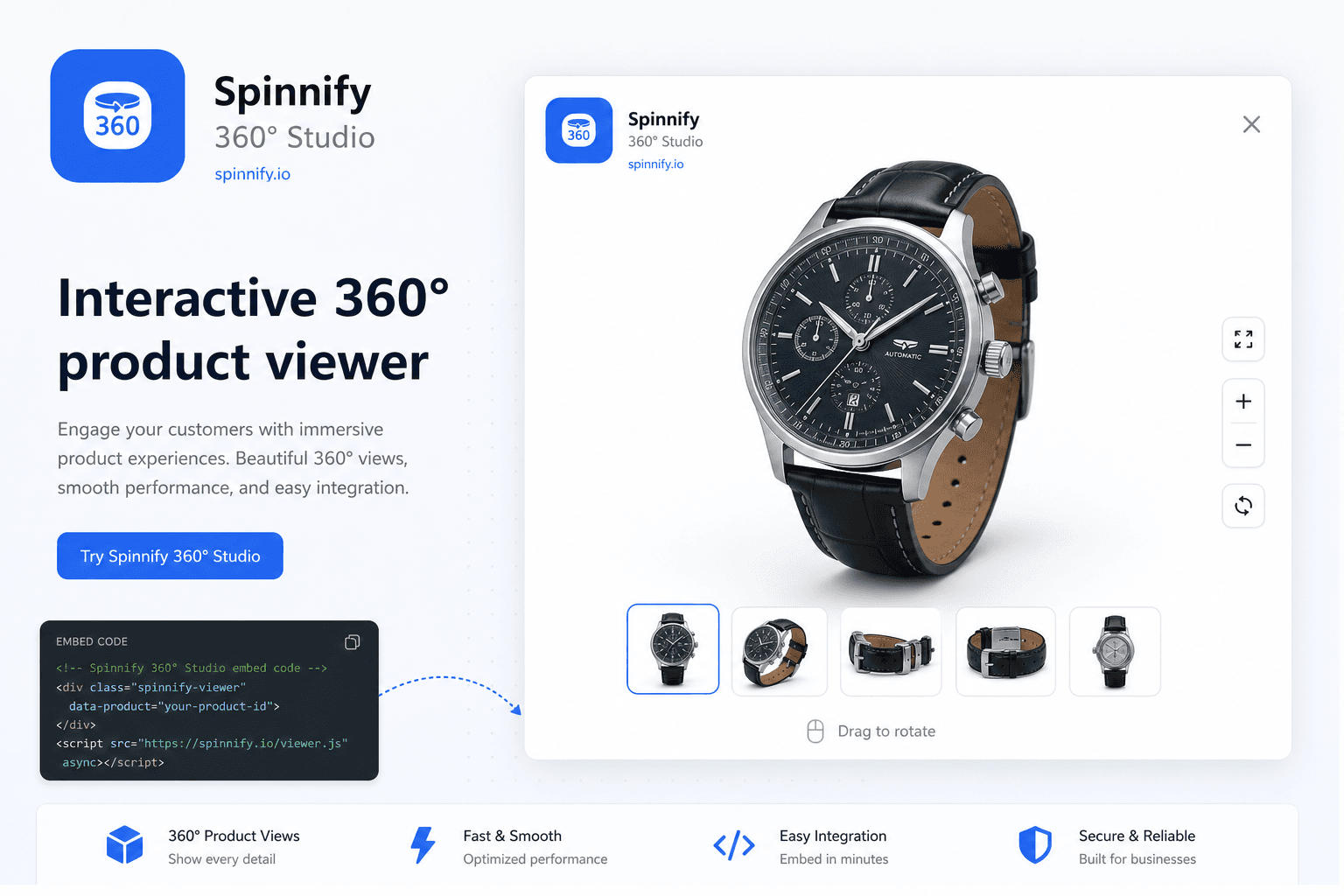
Interactive 360° helps shoppers "touch" a product through the screen. Tilda galleries flip flat photos only—but you can add a rotating spin without leaving the platform.

Here is how to do it cleanly with Spinnify—even if you have never written code.

3 steps from photos to live site

Everything revolves around embed code placed in Tilda blocks.

1. Prepare in Spinnify Studio

Before opening Tilda:

  • Sign up for Spinnify Studio.
  • Upload a photo series (24–36 frames) and create a product.
  • Important: product name = the article (SKU) in your Tilda catalog.
  • Publish the product as Active.

2. Add code on Tilda

Two ways to embed the viewer:

Method A: T123 block (simplest). On the product page click Add block → T123 (HTML code). Copy code from Embed in Spinnify, paste into T123 → Save.

Method B: Zero Block (for designers). Add an HTML element, paste the same Spinnify code—move the button and adjust spacing freely.
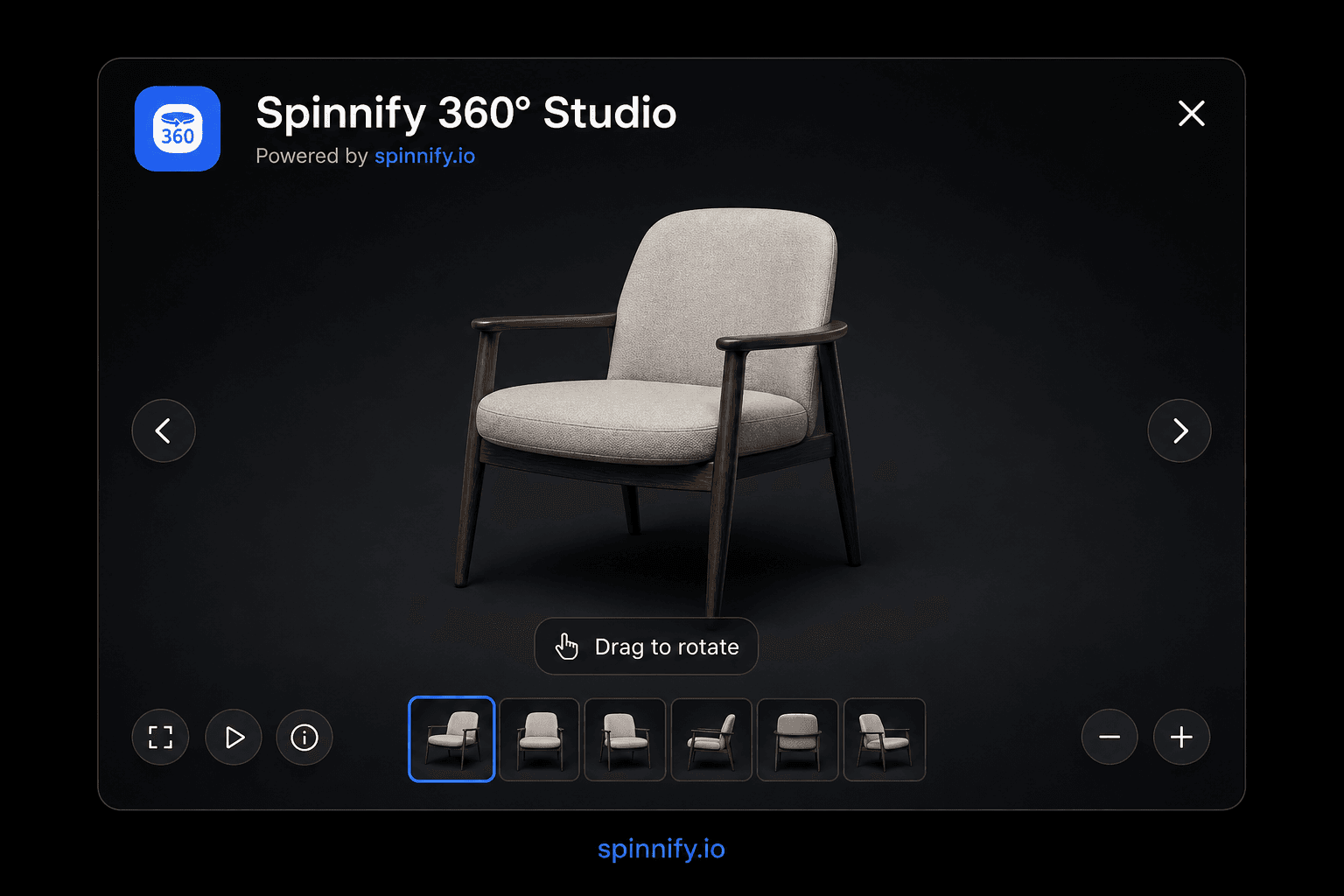
Spinnify embed on Tilda: T123 or Zero Block
widget.js in T123 / Zero Block → 360° modal.

3. Configure the binding

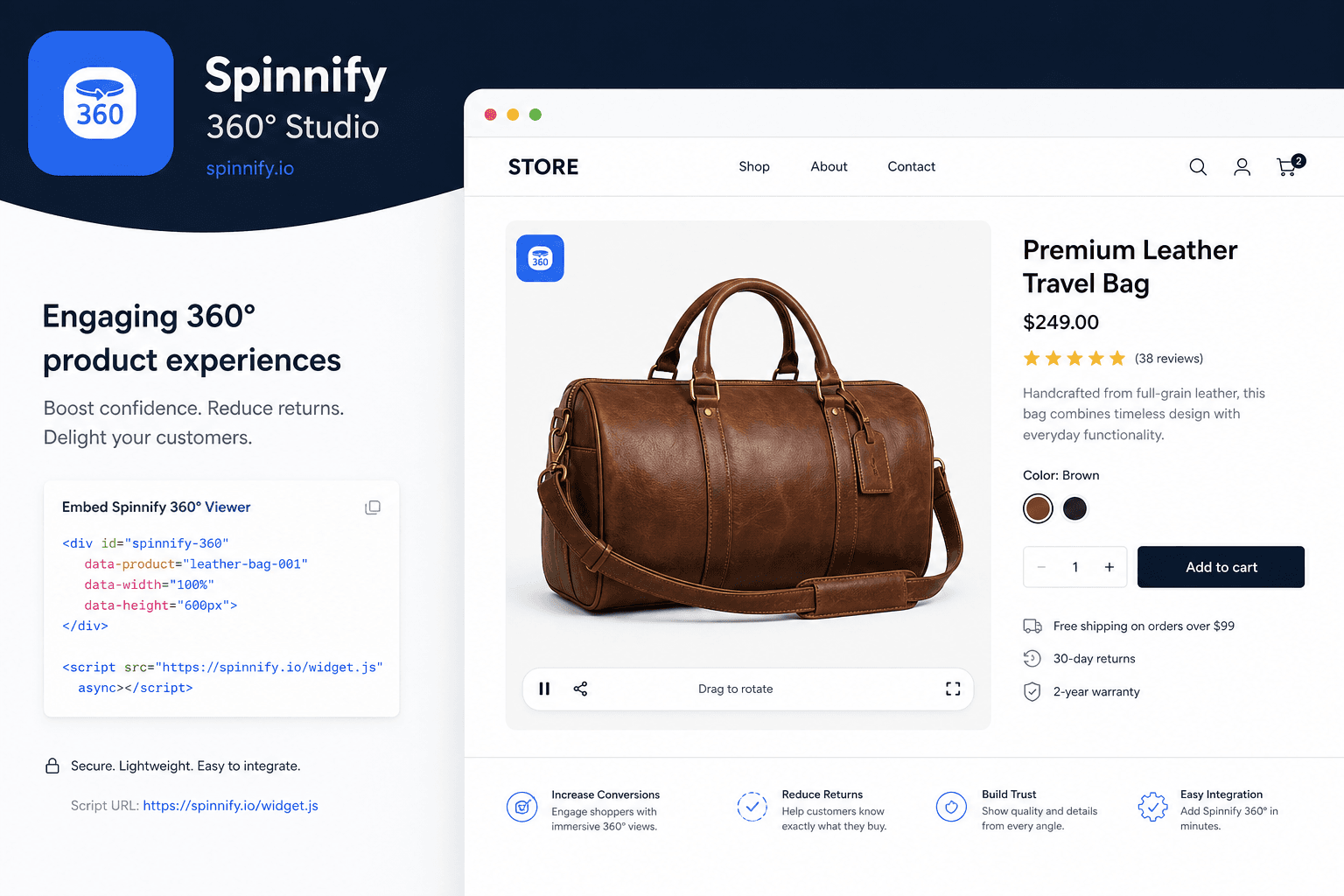
The code looks like: <script src="..." data-key="YOUR_KEY" data-sku="ARTICLE"></script>

  • data-key — your unique key (do not change).
  • data-sku — link to the product: set the article from Tilda store settings. The system loads the right spin.

Why it stays fast

Many fear third-party scripts slow the site. With Spinnify on Tilda:

  • Lazy loading: the browser does not fetch heavy photos until the user clicks.
  • Isolation: the viewer opens in a modal and does not load the main page code.
  • Cloud: photos compress to WebP and load via fast CDN.

Checklist: button not showing?

  • Is the Tilda page published? Use the live URL—preview often blocks external scripts.
  • Do names match? Studio product and Tilda article must match exactly (spaces and hyphens matter; case does not).
  • Is the Studio product published? Drafts hide the button.
  • Is the key correct? Verify data-key from your Spinnify account.
  • One script per block: do not paste the code twice in the same section.

Can I customize the button look?

Yes. In Spinnify Studio you can choose:

  • Button position—right, left, or center.
  • Colors and label to match your Tilda brand.
  • Format: round floating icon or slim tab for minimal design.

Integration done. Your Tilda landing is a showroom where every product can be inspected in detail.

Shoot spins: DIY smartphone guide. Shopify: integration guide. Full Spinnify guide.
Frequently asked questions

Do I need to write code for Tilda?
No. Paste the ready-made script from Spinnify Studio into T123 or Zero Block HTML—no programming required.
T123 or Zero Block?
T123 is fastest: add block, paste embed, save. Zero Block when the button must fit custom design—move the HTML element and spacing manually.
What are data-key and data-sku?
data-key is your widget key from Spinnify. data-sku is the product article in Tilda; the system loads the matching spin from Studio.
Will the script slow down my Tilda site?
Spinnify lazy-loads: heavy frames download on click. The viewer runs in a modal isolated from page code. Frames are WebP via CDN.
Why does the button not appear?
Check: Tilda page is published (not preview only), Studio name = SKU, product Active, correct data-key, one script per section.
Can I customize the button?
Yes—in Studio: position (right, left, center), colors, label, round floating icon or slim tab for minimal layouts.
Does it work in Tilda preview?
Often no—preview blocks external scripts. Test on the live published URL in incognito.
WooCommerce product page embedding Spinnify 360° viewer via widget.js
Integration10 min1,968 reads

How to Add 360° Product Views to Your WooCommerce Store

3 steps without heavy plugins: publish in Spinnify Studio, embed widget.js on single product, Manual/AUTO/URL binding. Lazy load, WebP/CDN. Checklist if the button stays hidden.

WooCommerceIntegration
Read article
Shopper evaluating a product with a 360° spin before purchase
Product UX10 min2,456 reads

The "Cat in a Bag" Effect: How the Tangibility Gap Quietly Destroys Online Store Sales

The tangibility gap is online retail's core curse: static photos leave buyers guessing, and roughly 19.3% of online orders are returned. How rotation, zoom, and hotspots restore control—with honest limits, no marketing fairy tales.

ConversionUX
Read article

Ready to publish your first 360° spin?

Create a product, upload frames, and embed the widget with one script snippet.

  1. Upload frames
  2. Embed script
  3. Go live
Try Spinnify free