Quick answer
To add interactive 360° product images to Webflow CMS: publish each spin in Spinnify Studio under the same name as your Webflow SKU, add or confirm a SKU field in your Products collection, paste widget.js once in the <head> of your Products collection template with a dynamic CMS SKU (defer), and publish. Frames stay on Spinnify CDN, not in Webflow Assets, so you avoid the 4 MB per-file CMS limit and keep Core Web Vitals healthy.
Webflow teams search for a webflow cms 360 product viewer when flat gallery photos stop answering real buyer questions: seam finish, scale, hardware colour, how the product looks from the back. The platform makes beautiful PDPs, but it was never built to host thirty-six full-resolution rotation frames per SKU inside CMS storage. Uploading a frame sequence into Webflow Assets blows past the per-file size cap, slows mobile pages, and forces you to repeat embed work for every new product.
Spinnify keeps the heavy work off Webflow: you shoot or upload a rotation in Studio, match it to your catalog by SKU, URL, or Schema.org AUTO, and wire one template snippet in the Designer. Shoppers tap 3D View; the viewer loads on interaction so LCP stays intact. In this guide we explain why the format pays off on Webflow storefronts, how Spinnify compares to Sirv and iframe-heavy alternatives for this stack, and the exact Designer steps for a dynamic 360° view across your CMS collection without a marketplace plugin.
What is a Webflow 360 product view?
A webflow 360 product view is an interactive spin on your product template: the visitor drags or swipes and sees a photographed rotation, not a static hero image. Technically it is a loop of still frames from an external CDN. That is different from a .glb file in CMS, a scroll-driven opacity trick, or a video in Assets. Webflow CMS caps each upload at 4 MB, which is enough for one product photo but not for a full rotation series at commerce quality.
Spinnify delivers optimized WebP and AVIF frames from its CDN, opens the player in a modal after tap, and binds to each CMS item through SKU, page URL, or structured data. One product template can serve hundreds of SKUs: you only change the dynamic field in custom code, not the layout.
Why interactive product images matter on Webflow
Mobile traffic dominates most Webflow stores, yet phone visitors often convert at a lower rate than desktop because they cannot pick up the product. A responsive 360 viewer gives them control: spin, zoom, read hotspots on details you label once in Studio. That closes part of the tangibility gap between the PDP and the unboxing. NRF industry surveys often cite online return rates near 19%; many returns trace back to the item looking different than the photos suggested. Richer angles help most when your baseline gallery was thin.
Treat vendor conversion percentages as hypotheses until you measure your catalog. Compare add-to-cart and return reasons on SKUs that gained a spin. On live PDPs, time on page often rises when shoppers can inspect texture and proportions themselves, and support tickets that start with "it looked different on the site" tend to fall when the spin matches what you ship. Hosting frames outside Webflow also protects Core Web Vitals: the product page HTML stays light while the spin loads only after intent.
Why not host 360 frames inside Webflow CMS?
Teams sometimes try a no-code 360 product spin webflow built only with native tools: a Multi-image field, thirty-six layers, and a While scrolling in view interaction that cross-fades opacity. It can demo well in the Designer. On a live PDP it often ships 15–30 MB of uncompressed stills, tanks LCP on mobile, and offers no zoom, no tracked hotspots, and no view analytics. External hosting exists because CMS storage is the wrong layer for a frame pipeline.
- 4 MB per-file CMS limit blocks full-resolution frame sequences.
- Dozens of gallery images per SKU multiply page weight and Designer maintenance.
- No native zoom, hotspot tracking, or storefront view stats on scroll animations.
- Every new SKU repeats layout work unless you externalize delivery.
Spinnify vs other 360 tools on Webflow
To add 360 image to webflow without fighting script order, compare how each option actually lands in a Webflow PDP template, not just feature lists on marketing sites.
| Spinnify 360° Studio | Sirv | Cloudinary / iframe tools | |
|---|---|---|---|
| Webflow setup | One script or custom button per template; dynamic CMS SKU | Custom JS + folder hierarchy; jQuery load-order risk | API widgets or heavy embed blocks; Zapier for CMS sync |
| Dependencies | Vanilla JS; no jQuery | Often jQuery + imagerotator.js | Varies; large client libraries common |
| CMS binding | SKU / URL / Schema.org AUTO | Manual path parsing per SKU | URL fields + iframe per product |
| Delivery | Lazy modal; WebP/AVIF CDN | CDN transforms | CDN transforms; player weight varies |
| Hotspots | CV-tracked in Studio dashboard | Manual coordinate markup | Not a core no-code 360 workflow |
| Page speed | Loads on shopper tap | Heavier script stacks possible | Header embeds can affect LCP |
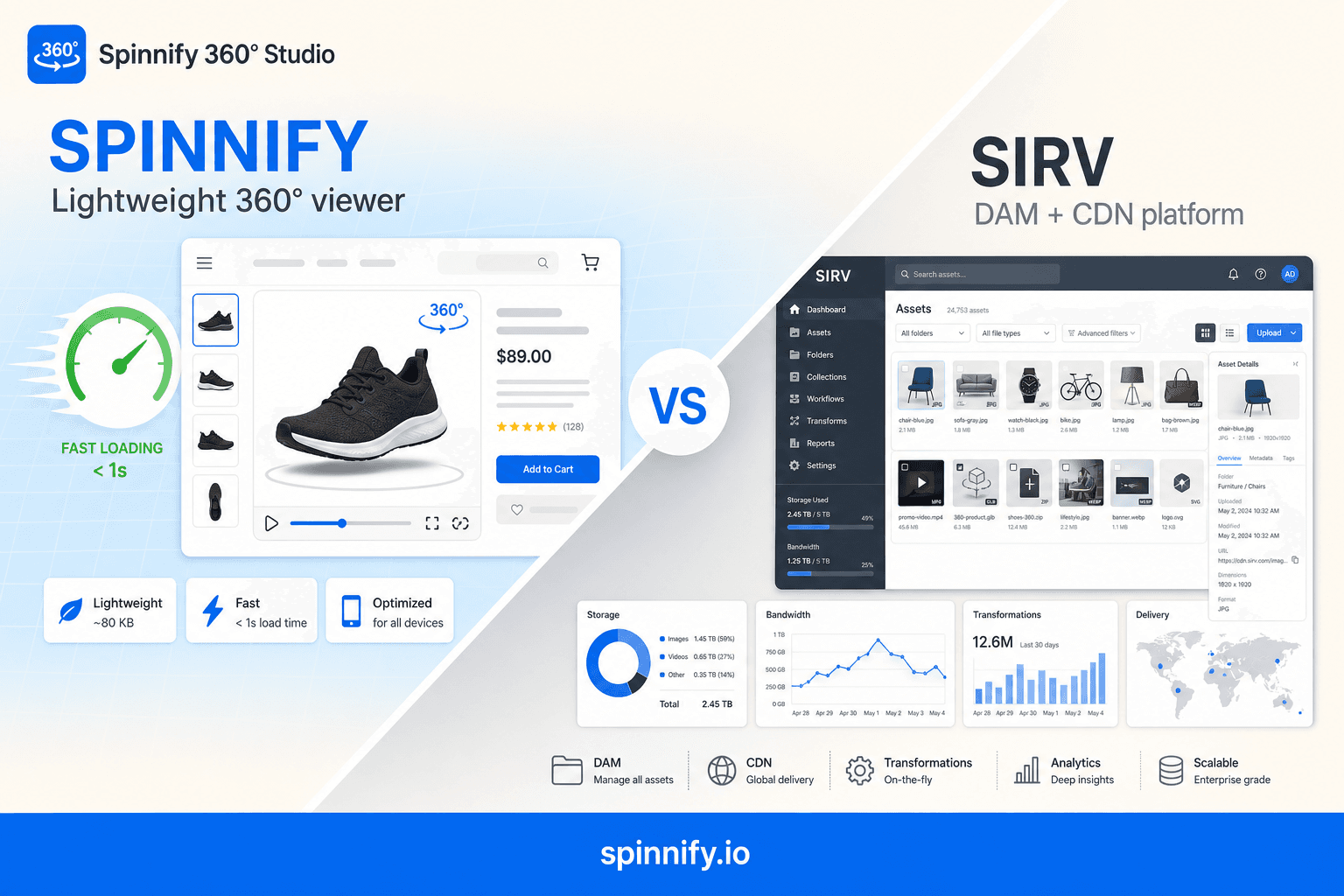
Sirv is a capable DAM, but Webflow integrators often hit jQuery timing issues when imagerotator.js runs before footer scripts load. Spinnify's boot path avoids that class of failure. For a deeper feature split, see Spinnify vs Sirv.
How to add interactive 360 product images to Webflow CMS
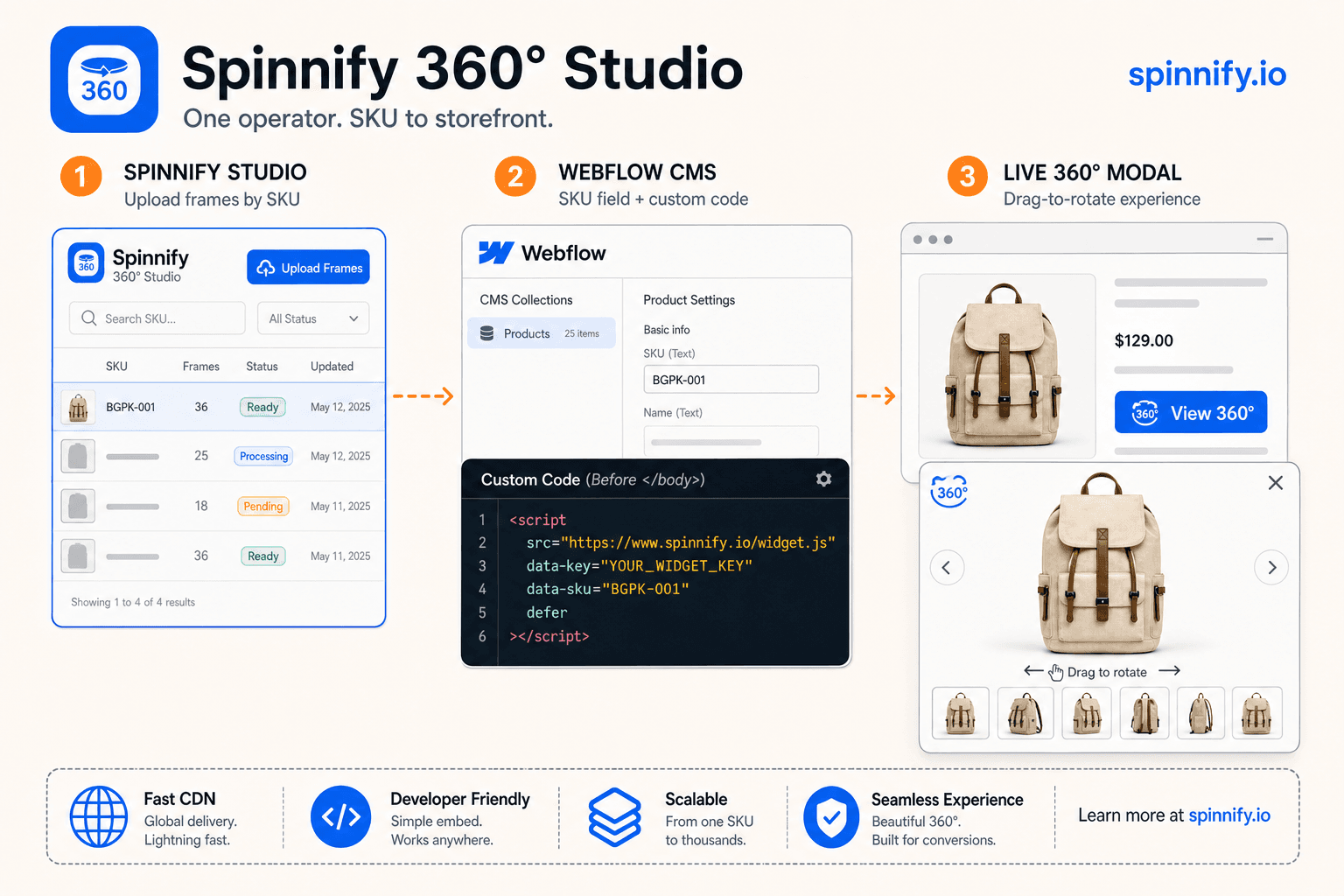
The fastest path for most Webflow ecommerce sites is SKU binding on the product template. You will prepare spins in Studio, confirm a SKU field in your collection, add a 3D trigger in the gallery, and paste one embed snippet with a dynamic CMS token. Total Designer time for the template is usually under an hour; each new product is then Studio upload only.
Step 1. Publish spins in Spinnify Studio
Log in at spinnify.io and create a product whose name matches the SKU you will store in Webflow CMS (case-insensitive). Upload a landscape 4:3 frame series, up to 36 frames for the main spin, or capture with the mobile app using PC photos mode. Device upload compresses to WebP before cloud storage. Toggle the product Active so the widget can serve frames. Add hotspots in the dashboard if you want callouts that track across the rotation; placement is dashboard-only, not on the warehouse floor.
Step 2. Configure your Webflow CMS collection
In Webflow Designer open CMS → your Products (or Ecommerce Products) collection. Confirm a Plain text field for SKU; add one if your stack uses internal product codes only. Fill the field for each item you will spin. You do not upload rotation frames into CMS; the field serves only as the lookup key Spinnify uses at runtime.
Step 3. Place a 3D button on the product template
Open the Product template page. Drop a Button or Div block beside the main gallery. Style your label ("View in 360°" or a gallery icon). You have two wiring options:
- Floating 3D control: paste widget.js once in the template <head> (see Step 4). Spinnify renders the default button.
- Branded CTA: add a custom button with data-spinnify-open, data-spinnify-key, and data-spinnify-sku bound to the CMS SKU field, plus widget-trigger-boot.js on the same template (no widget.js in head). Use hidden for reveal-after-confirm, or data-spinnify-when=click to show the button immediately.
For dynamic SKU on a custom button, open Element settings. Custom attributes are optional: set data-spinnify-sku in an HTML Embed with Webflow's + Add Field token for the SKU column.
Step 4. Paste widget.js once in the template head
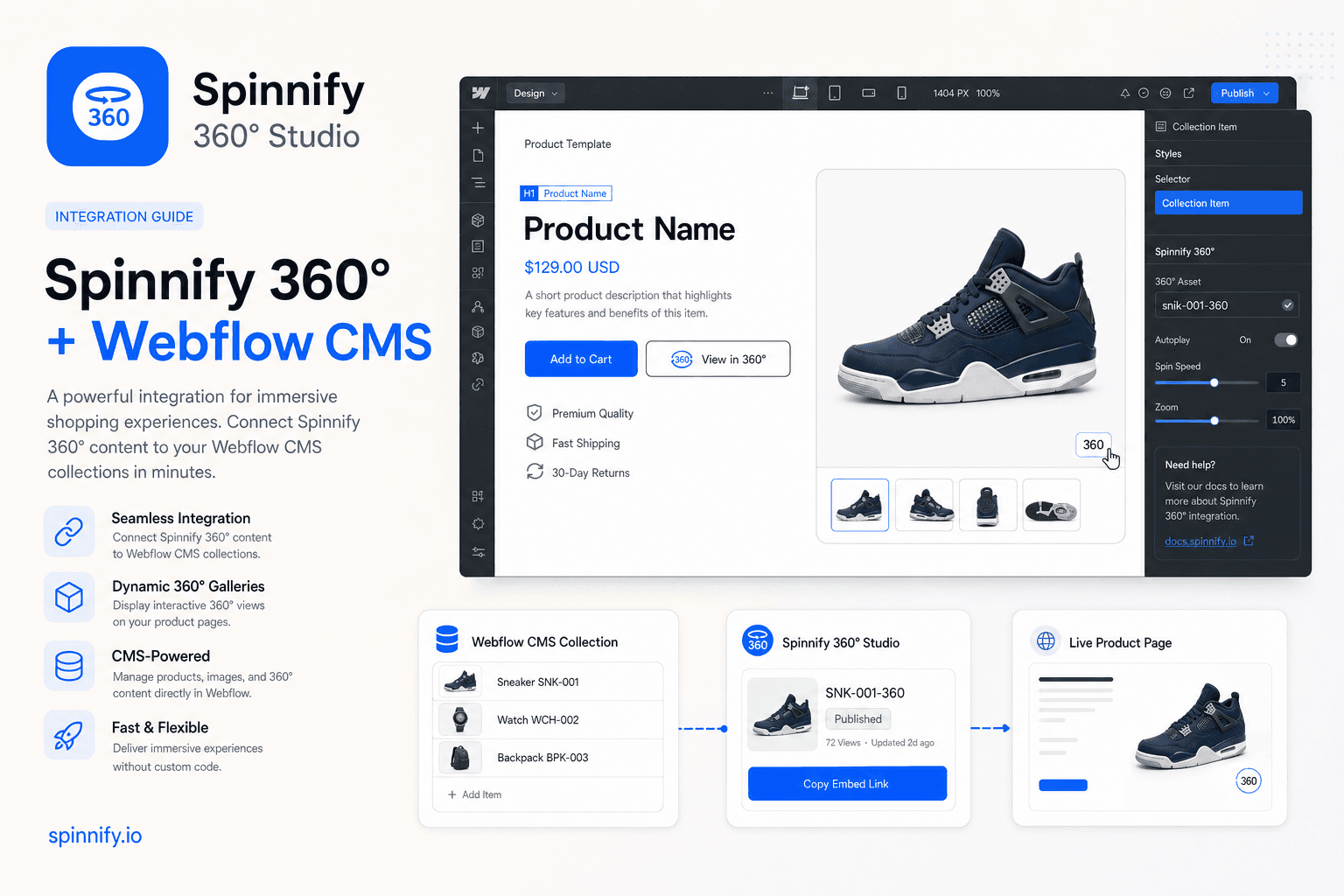
Copy your widget key from Dashboard → Widget installation. Open your Products collection template → Page settings → Custom code → Inside <head> tag. Paste the loader once and bind data-sku to the CMS SKU field with Webflow's + Add Field picker. Each published PDP then outputs its own SKU at runtime. Keep defer so the script does not block rendering.
Paste: script src https://www.spinnify.io/widget.js with data-key YOUR_WIDGET_KEY and data-sku bound to the CMS SKU field (defer). Replace the key and use Webflow + Add Field for the SKU token. Alternatives: data-sku AUTO in site or template head when JSON-LD Product includes sku, or data-sku URL when page paths are saved in Studio (set store base URL in Widget settings).
Step 5. Publish and verify on a live URL
Publish the Webflow site. Open a product URL that has both a filled CMS SKU and a published Studio spin. Confirm the 3D control appears (or your custom button reveals after match). Tap to open the modal, drag the rotation, and test on mobile width. If nothing opens, re-check Studio product name, Active toggle, and that the dynamic token rendered the expected SKU in the published HTML source.
How to link 360 images to a Webflow CMS collection
Linking does not mean attaching files to collection items. It means passing a stable identifier from CMS to Spinnify at page load. The template outputs the SKU into data-sku or data-spinnify-sku, the widget requests the matching project from the API, and the CDN serves frames. Adding a new catalog row only requires the SKU field populated and a Studio project under the same name; the template code stays untouched.
If you do not use SKUs, URL mode stores the product path on the Studio card and sets data-sku="URL" on the script. AUTO mode reads sku from Schema.org Product JSON-LD, useful when Webflow ecommerce outputs structured data automatically. Full binding reference: Spinnify integration guide.
How to embed 360 degree images in Webflow (non-product spins)
Panoramic 360° (room tours, architectural walkthroughs, equirectangular scenes) is a different format from product spins on white. Merchants usually host the panorama on a specialist viewer (for example Momento360), copy an iframe embed, and place an HTML Embed element on a Webflow page. That workflow suits listings and editorial pages, not SKU-scale ecommerce catalogs where you need SKU binding, lazy load, and return-rate impact on PDPs.
Can you upload 3D models to Webflow CMS?
Webflow does not accept .glb, .gltf, .obj, .fbx, or .usdz as native CMS collection files, and the 4 MB media cap still applies to allowed types. Teams that want mesh viewers store an external viewer URL in a Link or Plain text field and iframe the hosted model from Spline, SwiftXR, or similar. That path is heavier than a photo spin and slower on mid-tier phones. For most catalog PDPs, photographed spins are the practical choice.
Webflow 360 product spin without plugins
You can approximate a spin with Webflow Interactions and a Multi-image field, but it will not replace a commerce viewer. You will fight weight limits, rebuild interactions per product, and still lack zoom and hotspot analytics. Spinnify is a hosted service you wire with custom code once, not a Webflow marketplace plugin: no App Store install, no per-SKU iframe paste, one template for the whole collection.
Mistakes Webflow teams make
Uploading rotation frames into CMS is the most common misstep. It seems intuitive because galleries already live there, but you immediately hit size limits and slow LCP. External CDN hosting exists precisely so Designer layouts stay fast.
SKU drift between Studio and CMS is the second failure mode. Marketing renames a product in Webflow while Studio still uses the launch code; the widget silently fails to match. Treat the SKU field as the contract between teams and audit it when titles change.
Loading heavy scripts in the head without defer, or stacking Sirv-style jQuery rotators ahead of footer libraries, produces console errors that are hard to spot in Preview. Spinnify’s defer-friendly loader and optional click-only boot avoid fighting Webflow’s default script order.
First live 360° on Webflow in about 30 minutes
Use this checklist on one hero SKU before you batch the catalog:
- 1. Create and publish one spin in Studio; name = Webflow SKU; Active on.
- 2. Add or confirm SKU Plain text in the Products collection; fill one item.
- 3. Paste widget.js once in the Products template <head> with dynamic CMS SKU + defer.
- 4. Publish Webflow; open the live PDP and tap 3D View.
- 5. Test mobile width; confirm drag, zoom, and hotspot labels if used.
- 6. Repeat Studio upload only for the next SKU; template unchanged.
Conclusion
A webflow cms 360 product viewer belongs off-platform: Spinnify hosts frames, Webflow passes the SKU, shoppers get a lazy-loaded modal spin. You avoid CMS file limits, skip jQuery rotator fragility, and scale one template across the catalog. Start with one product, measure PDP engagement and returns, then batch spins using the same Studio workflow as DIY 360 capture. Need a parallel no-code path? Compare Tilda zero-block embed patterns; binding logic is the same.